
Article
eSIM installed but no internet: identify the failure
Separate a missing profile, no signal, no mobile data and a single-app issue, then collect the details support needs without deleting your eSIM.
On this page
An installed eSIM is one part of a working connection. First identify whether the profile is present, whether its line has service, and whether mobile data works outside the app that reported the problem. Those observations lead to different next steps.
Start with the exact eSIM in My eSIMs and follow its connection help for package-specific settings; the installation guide also has guided checks for an eSIM that will not install or has no data. This guide helps you describe the failure and interpret the result; it does not replace the selected package’s network, roaming or APN instructions.
Find your starting state
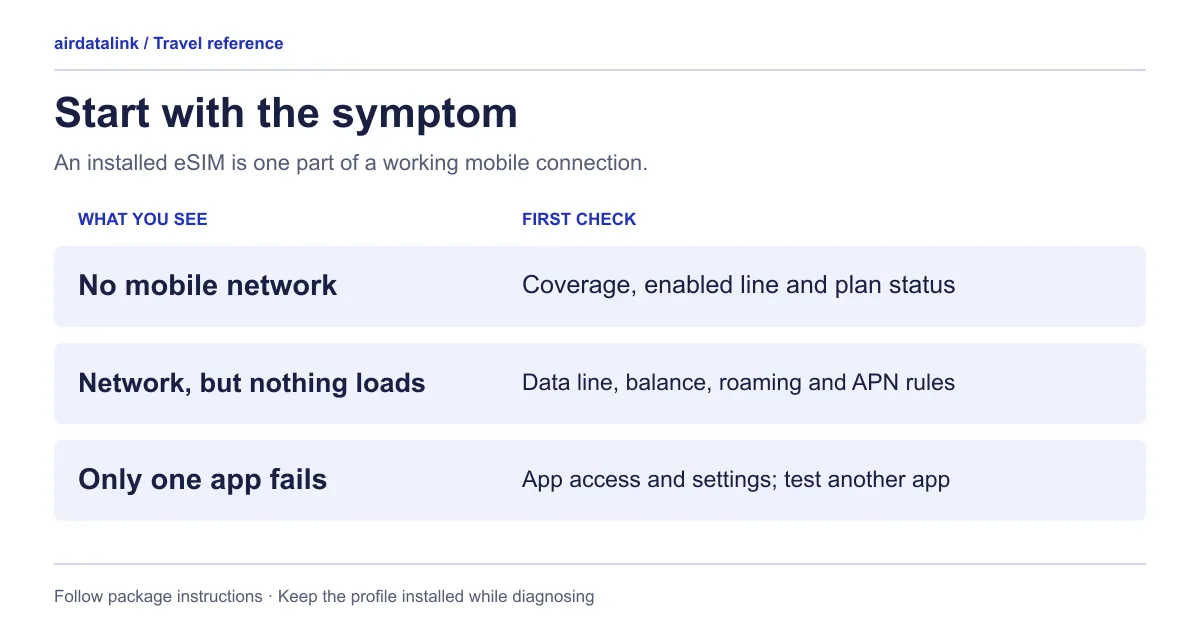
Check the phone’s SIM or mobile-plan list. Identify the travel profile by its label and order details, especially if several profiles have similar names. Then use this matrix.
| What you can observe | What to investigate next | Useful evidence |
|---|---|---|
| Travel profile absent from the phone | Installation or download did not complete, or the wrong profile was checked | Installation message and whether the profile appears in settings |
| Profile present, travel line reports no service | Enabled line, covered destination, usable network and local coverage | Travel-line status, country, approximate location and time |
| Travel line has service, but separate internet tests fail | Selected data line, active package, remaining allowance and required settings | Data-line selection, package status and exact test results |
| Browser and another app work, one app fails | That app’s connection permissions, account, service status or availability | App name, error and whether it works on a separate connection |
This is a way to narrow the question, not a remote diagnosis. Signal bars can belong to the other SIM. Check the travel line’s status rather than concluding that the eSIM works because a bar or network icon appears somewhere on the screen.
If you have not yet reached a destination covered by the package, installation at home does not establish how it will connect there. Follow the package’s validity instructions (the start-rule guide explains why they differ) and save a backup before departure.
Run one controlled mobile-data check
Use a place where you can safely pause for a few minutes. Save anything you need from Wi-Fi, then temporarily disconnect it and make sure the intended travel line is selected for mobile data. Try loading a new, lightweight page and then one unrelated app. A previously loaded page may not be a useful test.
Google’s Pixel troubleshooting guide recommends checking the enabled SIM and mobile-data settings, testing with Wi-Fi off, and considering signal strength. Use your manufacturer’s instructions for the corresponding controls.
Write down which tests succeeded. Reconnect to Wi-Fi when finished if you need it for support. Avoid running repeated large speed tests while the allowance is uncertain; they add another variable to the investigation.
Know where the main switches are
The same few settings explain most installed-but-silent profiles. Menu names vary by software version, so treat these paths as a map and use your manufacturer’s current instructions.
| Check | iPhone (Apple’s pages) | Pixel (Google’s pages) |
|---|---|---|
| Travel line is switched on | Settings → Cellular, tap the line; if it is off, tap Turn On This Line | Settings → Network & internet → SIMs, select the carrier and turn on Use SIM |
| Travel line carries mobile data | Settings → Cellular → Cellular Data, tap the number; only one number can use cellular data at a time | In SIMs, turn on Mobile data, then under your primary SIMs choose the data line; only one SIM can be the default for data |
| Data roaming for that line | Settings → Cellular, select the line first, then Cellular Data Options → Data Roaming | Google’s connectivity page does not cover roaming; use the plan’s own instructions |
| Refresh the connection | Turn Airplane Mode on for at least 15 seconds, then off; restart | Turn Airplane mode off; power the phone off, wait 30 seconds, then on |
| Last resort | Apple’s no-service steps do not list a network reset | Settings → System → Reset options → Reset mobile network settings |
Roaming is set per line, so change it on the travel line only and follow what the plan’s instructions say. Apple says whether roaming costs extra depends on your carrier’s plan and advises contacting your carrier before you travel, so check with your home carrier before switching roaming on for the home line. Apple’s roaming guide
If the travel line has no service
Check the package’s destination list for the country you are actually in, including any published pause or restriction. Then confirm that the relevant profile is switched on. A border crossing or airport layover can put you outside the country you bought a plan for.
Use the networks named in that package’s current instructions. Do not choose a network merely because its name is familiar or because another traveller uses it. If the connection help recommends manual selection, record the network attempted and the result.
If practical, compare the status in a second nearby location and note both places. That observation helps support distinguish a local signal problem from a failure that follows you. It does not prove a network outage or defective phone.
Apple’s no-service steps run in a sensible order: toggle Airplane Mode, restart, check with the provider that the account is active and there is no outage, update iOS, update carrier settings under General → About, then check that the line is on and that Data Roaming is set for international use. Take them one at a time and retest after each. If you are in a country the plan does not list, no setting will fix it; browse travel eSIM plans by destination to find one that covers where you are.
If there is service but no usable data
Review the package’s current status before changing settings. An expired package, exhausted allowance or revoked profile needs a package decision. Repeating installation steps will not resolve those conditions. On a fair-use plan, the end of the full-speed data can mean a much slower speed instead of a stop, which can feel like no connection; the plan’s own terms say which applies, and the fair-use comparison worksheet shows how to read them. Usage readings come from the supplier and can lag behind what you have just used, so note the update time shown beside a reading. If a reading is old or unavailable, report that uncertainty instead of treating it as a confirmed balance.
Next compare the selected data line, roaming instruction and APN with the exact package guidance. Roaming instructions apply to a particular line; changing every SIM’s setting together makes the result harder to interpret. Preserve the current values before changing anything and retest after one change at a time.
If a personal VPN or custom DNS configuration is involved, include that fact in the support description. For managed work phones, consult the administrator before changing those settings. Do not assume every connection failure requires a general network reset.
If only one app fails
Keep the working browser and second-app results as evidence. Check the affected app’s mobile-data permission, exact error and official service-status information, where available. Compare a non-sensitive action on a separate trusted connection.
An app working on Wi-Fi and failing on mobile data narrows the situation, but does not establish the cause. Ask about the specific service rather than assuming an eSIM’s routing location guarantees access to every app. If multiple services fail later, return to the mobile-data branch.
Send a small, useful support packet
Use Contact support and include:
- Order reference (or the eSIM number, the ICCID) and the name of the affected package.
- Phone model, operating-system version, country, approximate location, and local date and time with time zone.
- Which matrix row matches the problem, the travel-line status and selected data line.
- Current package/usage reading and its update time, or a note that it was unavailable.
- Tests tried, one change at a time, and the exact error or result.
Send identifiers only through the private support channel when requested. Do not post the installation QR code, activation details, account codes or private access link publicly. A cropped screenshot of an error can help, but keep installation credentials out of it.
Apple advises against erasing an eSIM for troubleshooting unless the carrier directs it. Keep the installed profile while the evidence is assessed. “Installed, travel line has service, two fresh page loads fail, checked at 14:10 Bangkok time” gives support a clearer starting point than “my internet is broken.”
Common questions
Why does my eSIM say “No Service”?
The usual causes are a travel line that is switched off, a country the plan does not cover, or a roaming setting that the plan’s instructions require on that line. Check the line’s status first, then the destination list. Apple’s no-service steps start with Airplane Mode for 15 seconds, then a restart, then carrier-settings and roaming checks.
Do I need data roaming on for a travel eSIM?
Follow the instructions for your plan. On iPhone, Data Roaming is a per-line setting under Cellular Data Options, so select the travel line before changing it. Whether roaming costs extra on a carrier’s own plan depends on that plan, so check with your home carrier before switching it on for the home line.
My eSIM shows signal but the internet does not work. What should I check?
Check which line is selected for mobile data, since only one line carries it at a time on iPhone and Pixel. Then switch Wi-Fi off, load a fresh lightweight page, and look at the plan’s status and allowance. Change one thing at a time so you know which step helped.
Should I delete and reinstall the eSIM?
Not as a first step. Apple says not to erase an eSIM for troubleshooting unless the carrier directs it, because an erased eSIM needs replacing by the provider. Check the plan’s own reinstall terms before removing anything, and ask support if they do not cover your case.
Could the problem be one app and not the eSIM?
Yes. If a browser and one other app load, the eSIM is carrying data and the failing app is the next thing to check: its mobile-data permission, its error message and its service status. Keep the working tests as evidence for support.
If the allowance ran out sooner than you expected, how much data a travel eSIM needs shows how to budget for the next trip.
Sources
- Google Pixel Help: fix mobile connectivity issueschecked 30 October 2026
- Apple Support: how to erase an eSIMchecked 30 October 2026
- Apple Support: if you see SOS, No Service or Searching on your iPhone or iPadchecked 30 October 2026
- Apple Support: about cellular data roaming options for your iPhone and iPadchecked 30 October 2026
- Apple Support: using Dual SIM with an eSIMchecked 30 October 2026
- Google Pixel Help: how to use dual SIMs on your Google Pixel phonechecked 30 October 2026
Related guides
Browse destinationsBrowse compatible phonesRead the installation guide