
Article
How much data do you need for a travel eSIM?
Build a travel data budget from your phone's measured usage, with a worked example, reserve and a worksheet for daily or total-data plans.
On this page
Choose a travel data allowance by measuring a useful sample of your own mobile use, adjusting it for the trip, and leaving a stated reserve. A list saying that every traveller needs a particular number of gigabytes skips the decisions that matter: what you do online, what you can save beforehand, and whether the package supplies a shared total or a daily allowance.
The worksheet below gives you a number to compare with actual packages. It is an estimate you can revise, rather than a promise that a specific allowance will last.
Measure a period you can explain
On iPhone, manually reset cellular statistics for a fresh sample. On Pixel, align the displayed usage period with your sample. Phone counters can differ from carrier measurements; use the provider’s balance when checking remaining service. Apple’s usage guide, Google Pixel’s usage guide
Before starting, write down the sample dates, the selected mobile-data line and the opening counter. If you reset a counter, save any earlier statistics you want to keep. If you use a usage period that Android already displays, record its exact start and end; do not divide a month’s displayed usage by the length of a shorter sample.
Choose several ordinary days that resemble your plans. A period spent mostly on home Wi-Fi may underrepresent a trip with long days outside. Conversely, a week with an unusual upload may overrepresent your normal navigation and messaging.
If the counter resets during your sample, record the segments separately and add them. A lower closing counter is not negative consumption. Start again if you cannot reconstruct the same period reliably.
Record the closing counter and calculate:
Sample mobile data = closing counter − opening counter
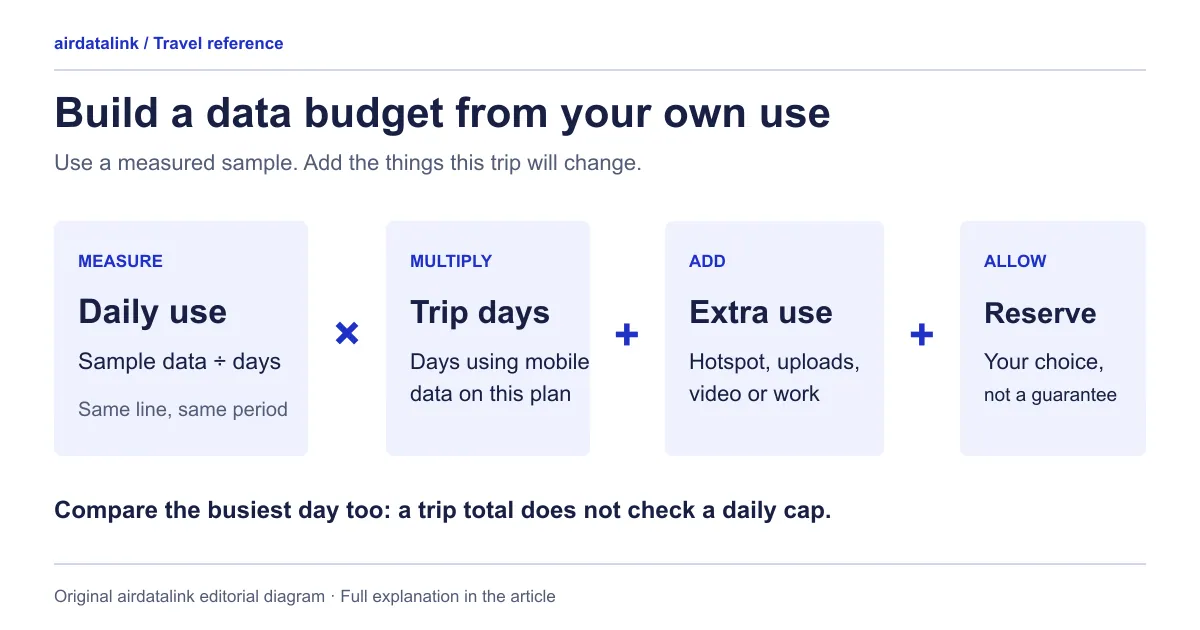
Daily baseline = sample mobile data ÷ sampled days
Keep Wi-Fi use out of that baseline. Record any major activity you expect to move from Wi-Fi to mobile data while travelling, such as joining a meeting during a transfer. The purpose is to explain the estimate, not to make every day identical.
Add the trip’s differences once
List activities that the sample did not already include. This prevents counting ordinary photo uploads in the baseline and then adding the same uploads again as a trip extra.
| Worksheet field | Your entry | Why it belongs here |
|---|---|---|
| Sample dates and data line | Start, end and profile label | Keeps the measurement period consistent |
| Sample mobile data | Counter difference | Establishes your own starting point |
| Sampled days | Number of measured days | Supplies the baseline divisor |
| Trip days needing data | Include relevant travel days | Supplies the trip multiplier |
| Extra mobile activities | Your own estimates | Accounts for activities missing from the sample |
| Work moved to Wi-Fi or offline | Name the tasks | Makes the intended reduction explicit |
| Reserve | State an amount or percentage | Records the uncertainty you choose to allow |
Download the data-budget worksheet to keep your sample and trip assumptions together.
For unfamiliar activities, run a separate small sample if practical, or record an uncertain allowance that you can revisit. Avoid treating someone else’s video, map or messaging rate as your own: app settings and behaviour differ.
A worked example with invented inputs
This example demonstrates the arithmetic. The figures are hypothetical, not measurements of a phone, app or network.
Suppose a traveller records 1.8 GB across six comparable days. Their baseline is 0.3 GB per day. For a nine-day trip, that gives 0.3 × 9 = 2.7 GB.
They then assign 1.2 GB to extra activities missing from the sample. Their working subtotal becomes 2.7 + 1.2 = 3.9 GB. They choose a 25% reserve, an editorial planning assumption used here solely to show the calculation:
| Calculation | Hypothetical result |
|---|---|
| Daily baseline | 1.8 ÷ 6 = 0.3 GB |
| Nine trip days | 0.3 × 9 = 2.7 GB |
| Extra activities | +1.2 GB |
| Working subtotal | 3.9 GB |
| Chosen reserve | 3.9 × 25% = 0.975 GB |
| Estimated total | 4.875 GB |
A package containing at least that estimated total becomes a candidate. It still needs suitable validity, coverage and conditions. A different traveller could choose a larger reserve or a different baseline; 25% is not a universal recommendation.
Cross-check against published figures
Your measured sample comes first, but published figures help with activities you have never measured. Treat them as ceilings for planning, not as predictions for your phone.
| Activity | What the service publishes | What the figure is |
|---|---|---|
| Video streaming | Netflix lists up to 0.3 GB an hour on Low, up to 0.7 GB on Medium, and on High up to 1 GB (SD), 3 GB (HD) or 7 GB (Ultra HD) | Data used per hour, per device; Auto adjusts to your connection speed |
| Audio-only video-meeting call | Zoom lists 60–80 kbps | Recommended bandwidth, a connection speed |
| One-to-one video call | Zoom lists 600 kbps for high-quality video and 1.2 Mbps for 720p HD (up and down) | Recommended bandwidth, a connection speed |
Zoom’s figures are speeds, so convert them if you want an amount: megabits per second × 0.45 is roughly gigabytes per hour if the rate were sustained. On that arithmetic, 600 kbps comes to about 0.27 GB an hour in each direction. That is our calculation from Zoom’s figure, not a measurement, and real calls vary.
Streaming shows why the busiest day matters. A single hour of HD video at the published ceiling would use a large share of a modest daily allowance, while the same hour at a low setting would not. If you will stream, set the quality yourself rather than relying on Auto.
Phone tools that reveal or limit usage
- iPhone: Low Data Mode can be switched on for one cellular line under Settings → Cellular. Apple says it turns off Background App Refresh, automatic updates and automatic downloads, and reduces streaming quality. Apple’s Low Data Mode guide
- Pixel: App data usage (under Settings → Network & internet → SIMs) shows which apps used data, and Data warning & limit can notify you or switch mobile data off at a level you choose. Google also says the phone’s numbers can differ from the provider’s, so check the provider’s balance against your plan. Pixel usage guide
- Offline maps: Google Maps lets you save an area to the phone. Offline, transit, cycling and walking directions are unavailable, and driving loses live traffic and alternate routes, so decide which journeys need live data. Google Maps offline guide
None of these replaces the provider’s own balance, and none makes a plan cover more days. They help you stay inside the budget you built.
Compare the busiest day as well as the total
A total-data package and a daily package answer different budgeting questions. Copy the allowance type and any reset or fair-use instructions from the package you are considering.
For a total-data package, compare the whole estimated trip with the shared allowance. For a daily package, also compare your busiest expected day with its stated daily allowance. A modest trip total does not resolve a single day containing an unusually large upload. Check what happens after the allowance and whether unused daily data carries forward; leave these fields unanswered until the package states them.
Keep validity beside the budget. Extra gigabytes cannot solve a plan that expires before the final day you need it.
Recheck after the first travel day
airdatalink’s usage page provides a route to data and validity details. Its public explanation identifies the eSIM’s ICCID, found in the delivery email or phone settings, as the lookup reference.
Usage readings come from the supplier and can lag behind what you have just used, so treat a reading as a recent snapshot, not a live meter. Record when you checked, using the update time shown with the reading, and compare the result with your budget. If you are using more than expected, identify the changed activity before buying more data. Use the data and battery guide for settings that support your chosen budget.
The completed worksheet should leave you with three useful facts: an explained total, a busiest-day estimate and enough validity for the trip. Compare those with the current options: browse travel eSIM plans by destination.
If a plan’s data runs low mid-trip, the top-up or new plan worksheet covers the choice.
Common questions
How much data do I need for a week-long trip?
There is no single number, because it depends on what you do online. Measure a few ordinary days to get a daily baseline, multiply by your trip days, add extras the sample missed, then add a reserve. The worked example above shows the arithmetic with invented figures.
How much data does Google Maps use?
Google’s help page gives no figure for navigation, so measure your own: note your phone’s data counter before and after a journey. What Google does document is that offline maps let you navigate without live data, though live traffic and alternate routes need a connection, and transit, cycling and walking directions are unavailable offline.
How much data does a video call or streaming use?
It depends on the service and the quality setting. Netflix publishes per-hour ceilings from up to 0.3 GB on Low to up to 7 GB for Ultra HD, and Zoom publishes recommended bandwidth, 60–80 kbps for audio-only and 600 kbps for one-to-one video. Use the conversion above, and set video quality yourself while travelling.
Is a daily plan or a total-data plan better?
A total allowance suits uneven days, such as a quiet city day followed by a long navigation day. A daily allowance suits steady use, but a single heavy day can exceed it. Compare your busiest expected day with a daily allowance, and your whole-trip estimate with a total one. The fair-use comparison explains how to read what happens after the full-speed data is used.
How can I stop my phone using too much data abroad?
Use the phone’s own tools: Low Data Mode for the travel line on iPhone, Data warning & limit on Pixel, and offline maps downloaded over Wi-Fi. The data and battery guide lists more settings.
Sources
- Apple Support: Use cellular data on your iPhone or iPadchecked 30 October 2026
- Google Pixel Help: Reduce and manage mobile data usagechecked 30 October 2026
- airdatalink: Check eSIM usagechecked 7 October 2026
- Netflix Help Center: Netflix data usagechecked 30 October 2026
- Zoom Support: bandwidth requirements for Zoom Meetingschecked 30 October 2026
- Google Maps Help: download areas and navigate offlinechecked 30 October 2026
- Apple Support: use Low Data Mode on your iPhone and iPadchecked 30 October 2026
Related guides
Browse destinationsBrowse compatible phonesRead the installation guide